
At last! At last, it’s time to talk about VBOs.
Up to the last article, we’ve been working on drawing settings such as the viewpoint.
I think you can now move things around pretty much however you like.
This time, we’ll learn how to draw more efficiently.
Vertex arrays
So far, we’ve been sending data to the GLSL side with functions such as glBegin() and glVertex3f().
As I mentioned before, glBegin() and the like have already been removed or deprecated.
Drawing with these functions is very slow.
The C++ side sends the data for each vertex to the GLSL side one at a time, along with instructions like “please process it this way” every single time, so of course it’s slow.
To use an analogy: C++ is a manager who’s good at handing out work, and it gives work to GLSL, a subordinate who’s good at processing data.
If the manager hands out small tasks and documents every few dozen seconds, the subordinate wastes time going to get instructions, and the manager is too busy giving instructions to get any other work done.
On the other hand, if manager C++ hands over all the documents at once and explains the job up front, GLSL can work quietly at its own desk, and the manager can move on to other work.
That’s why you pass the data to GLSL as a vertex array and draw all the vertices you passed in one go.
For this, you use functions such as glVertexPointer(), but nowadays we use a mechanism called VBO instead, so these functions aren’t used anymore.
VBO (Vertex Buffer Object)
Animation is a flip book.
Many displays run at up to 60 fps. That means the screen can be updated 60 times per second.
So drawing at this maximum rate means transferring data to the GPU (GLSL) with glVertexPointer() or a similar function, processing it in GLSL, and updating the screen with glfwSwapBuffers(), 60 times every second.
With this approach, things become fatally slow as the amount of vertex data you send grows. That’s because the GPU is, of course, connected to the rest of the PC by wires, and there’s an upper limit to the transfer speed.
The transfer speed has become quite fast these days, but you still can’t send huge amounts of vertex data dozens of times per second.
So with VBOs, you send the vertex data to the GPU in advance and use that data every time you draw.
That way, the vertex data only has to be transferred once, at the start.
Set things up like this at initialization. std::vector is a standard C++ feature: you can get the number of elements just by adding .size() after the variable name, and you can resize it dynamically. It’s so convenient that you’d be missing out if you didn’t use it.
// Two triangle polygons
std::vector<vec3> positionList = {
    vec3(0, 0, 1),vec3( 1,0, 0),vec3( 0, 0, 0),
    vec3(0, 0, 1),vec3( 0, 0, 0),vec3(0, 1, 0),
};
// Specify the attribute
GLint positionLocation = glGetAttribLocation(shader, "position");
// Create the vertex buffer object
GLuint positionBuffer;
glGenBuffers(1, &positionBuffer);
// Allocate memory for the vertex buffer object on the GPU
glBindBuffer(GL_ARRAY_BUFFER, positionBuffer);
glBufferData(GL_ARRAY_BUFFER, sizeof(vec3) * positionList.size(), &positionList[0], GL_STATIC_DRAW);
“position” in glGetAttribLocation() is the name of an attribute variable in the vertex shader, which I’ll show below.
Next, change the glBegin() part inside the loop.
// Enable the attribute specified by positionLocation
glEnableVertexAttribArray(positionLocation);
// Bind positionBuffer
glBindBuffer(GL_ARRAY_BUFFER, positionBuffer);
// Assign it to the attribute variable position
// This tells the vertex shader to use the data already sent to GPU memory
//The third argument is 3 because each vertex is a vec3
glVertexAttribPointer(positionLocation, 3, GL_FLOAT, GL_FALSE, 0, (void*)0);

// Run GLSL. The 2nd and 3rd arguments specify which part of the vertex array to process
glDrawArrays(GL_TRIANGLES, 0, 6);
The GLSL vertex shader has to receive the attribute variable.
#version 120

//
// shader.vert
//

uniform mat4 MVP;
attribute vec3 position;

void main(void)
{
    gl_Position = MVP * vec4(position, 1.0);
    gl_FrontColor = vec4(1.0, 0.0, 0.0, 1.0);
}
To keep things simple, the color is specified here.
Instead of gl_Vertex, it uses the position variable we created.
gl_Position is a vec4, so position has to be converted to a vec4 too.
The main function looks like this. initGLFW() and makeShader() are the functions from the earlier articles (GLSL Built-in Variables and the Z-Buffer and Getting Started with GLSL Shaders).
int main()
{
    GLint width = 640, height = 480;
    GLFWwindow* window = initGLFW(width, height);

    GLint shader = makeShader("shader.vert", "shader.frag");

    // Two triangle polygons
    std::vector<vec3> positions = {
        vec3(0, 0, 1),vec3( 1,0, 0),vec3( 0, 0, 0),
        vec3(0, 0, 1),vec3( 0, 0, 0),vec3(0, 1, 0),
    };
    // Specify the attribute
    GLint positionLocation = glGetAttribLocation(shader, "position");
    // Create the vertex buffer object
    GLuint positionBuffer;
    glGenBuffers(1, &positionBuffer);
    // Allocate memory for the vertex buffer object on the GPU
    glBindBuffer(GL_ARRAY_BUFFER, positionBuffer);
    glBufferData(GL_ARRAY_BUFFER, sizeof(vec3) * positions.size(), &positions[0], GL_STATIC_DRAW);

    GLuint matrixID = glGetUniformLocation(shader, "MVP");

    // Frame loop
    while (glfwWindowShouldClose(window) == GL_FALSE)
    {
        glUseProgram(shader);

        glEnable(GL_DEPTH_TEST);
        glDepthFunc(GL_LESS);
        glClearColor(0.2f, 0.2f, 0.2f, 0.0f);
        glClear(GL_COLOR_BUFFER_BIT | GL_DEPTH_BUFFER_BIT);

        // They hold the identity matrix when declared
        mat4 modelMat, viewMat, projectionMat;

        // Compute the view matrix
        viewMat = glm::lookAt(
            vec3(2.0, 2.0, 2.0), // Camera position in world space
            vec3(0.0, 0.0, 0.0), // Position the camera looks at
            vec3(0.0, 0.0, 1.0)  // Up direction. Setting it to (0,1.0,0) makes the y-axis point up
        );

        // Compute the projection matrix
        projectionMat = glm::perspective(
            glm::radians(45.0f), // Zoom level (usually 90 to 30)
            (GLfloat)width / (GLfloat)height,		// Aspect ratio
            0.1f,		// Near clipping plane
            100.0f		// Far clipping plane
        );

        // Compute the ModelViewProjection matrix
        mat4 mvpMat = projectionMat * viewMat* modelMat;

        // Send the transformation matrix to the uniform variable "MVP" of the currently bound shader
        // The fourth argument is the address of the first element of the matrix.
        glUniformMatrix4fv(matrixID, 1, GL_FALSE, &mvpMat[0][0]);

        // Enable the attribute specified by positionLocation
        glEnableVertexAttribArray(positionLocation);
        // Bind positionBuffer
        glBindBuffer(GL_ARRAY_BUFFER, positionBuffer);
        // Assign it to the attribute variable position
        // This tells the vertex shader to use the data already sent to GPU memory
        glVertexAttribPointer(positionLocation, 3, GL_FLOAT, GL_FALSE, 0, (void*)0);

        glDrawArrays(GL_TRIANGLES, 0, 6);

        // Swap the double buffers
        glfwSwapBuffers(window);
        glfwPollEvents();
    }

    // Shut down GLFW
    glfwTerminate();

    return 0;
}
This displays the polygons (the result looks the same as the screenshot at the end of this article), but there’s still some inefficiency.
Vertex indices
The figure below shows the vertex coordinates used here, and there are only four vertices.
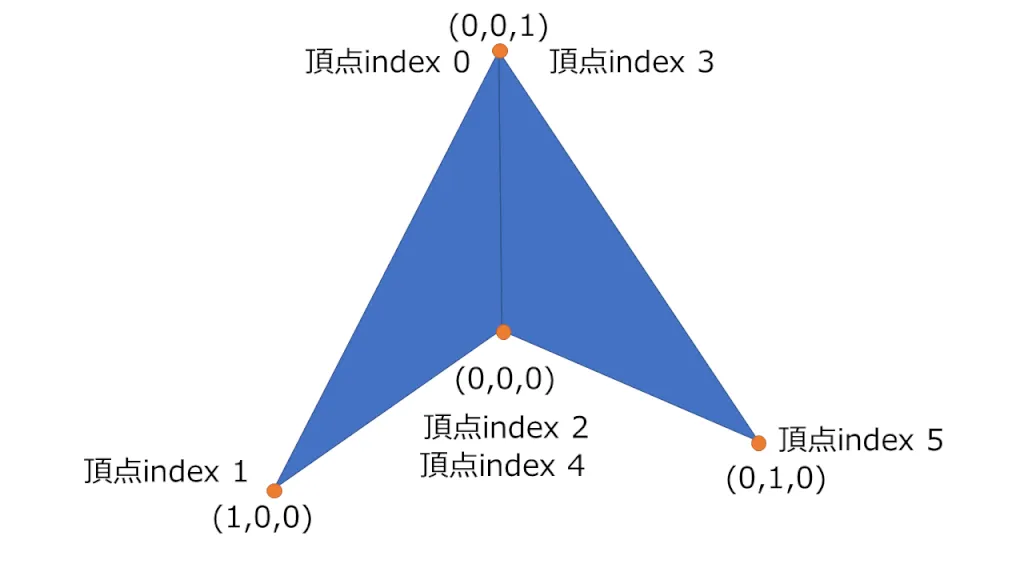
In the diagram, 頂点index means “vertex index”: the position of each vertex in the six-element array above. The points labeled with two numbers appear twice in that array.
But the vertex array in the program has six.
The vertex shader runs as many times as there are elements in the vertex array, so processing the same vertex the same way more than once is inefficient.
Vertex indices solve this. You store each vertex only once and use indices to specify which vertices make up each polygon, so you don’t have to store multiple vertices with the same coordinates.
Let’s write it. First, create the vertex array and the index array.
These arrays make the same polygons as before. indices specifies which elements of the vertex array to use.
// Two triangle polygons
std::vector<vec3> positions = {
    vec3( 0, 0, 0),vec3(1, 0, 0),vec3( 0, 1, 0),vec3(0, 0, 1),
};
std::vector<GLuint> indices = {3, 1, 0, 3, 0, 2};
Read the indices three at a time: {3, 1, 0} is the first triangle, and {3, 0, 2} is the second.
As an aside, the plural of index is indices. Depending on their preference, some programmers write indexes.
Strictly speaking, it seems the correct usage is indexes for the index of a book and indices for subscripts of arrays and the like.
The main function:
int main()
{
    GLint width = 640, height = 480;
    GLFWwindow* window = initGLFW(width, height);

    GLint shader = makeShader("shader.vert", "shader.frag");

    // Two triangle polygons
    std::vector<vec3> positions = {
        vec3( 0, 0, 0),vec3(1, 0, 0),vec3( 0, 1, 0),vec3(0, 0, 1),
    };
    std::vector<GLuint> indices = {3, 1, 0, 3, 0, 2};
    // Specify the attribute
    GLint positionLocation = glGetAttribLocation(shader, "position");
    // Create the vertex buffer object
    GLuint buffers[2];
    glGenBuffers(2, &buffers[0]);
    // Allocate memory on the GPU for the buffer object for indices
    glBindBuffer(GL_ELEMENT_ARRAY_BUFFER, buffers[0]);
    glBufferData(GL_ELEMENT_ARRAY_BUFFER, sizeof(GLuint) * indices.size(), &indices[0], GL_STATIC_DRAW);
    // Allocate memory on the GPU for the buffer object for positions
    glBindBuffer(GL_ARRAY_BUFFER, buffers[1]);
    glBufferData(GL_ARRAY_BUFFER, sizeof(vec3) * positions.size(), &positions[0], GL_STATIC_DRAW);
    // Unbind the vertex buffer objects
    glBindBuffer(GL_ARRAY_BUFFER, 0);
    glBindBuffer(GL_ELEMENT_ARRAY_BUFFER, 0);

    GLuint matrixID = glGetUniformLocation(shader, "MVP");

    // Frame loop
    while (glfwWindowShouldClose(window) == GL_FALSE)
    {
        glUseProgram(shader);

        glEnable(GL_DEPTH_TEST);
        glDepthFunc(GL_LESS);
        glClearColor(0.2f, 0.2f, 0.2f, 0.0f);
        glClear(GL_COLOR_BUFFER_BIT | GL_DEPTH_BUFFER_BIT);

        // They hold the identity matrix when declared
        mat4 modelMat, viewMat, projectionMat;

        // Compute the view matrix
        viewMat = glm::lookAt(
            vec3(2.0, 2.0, 2.0), // Camera position in world space
            vec3(0.0, 0.0, 0.0), // Position the camera looks at
            vec3(0.0, 0.0, 1.0)  // Up direction. Setting it to (0,1.0,0) makes the y-axis point up
        );

        // Compute the projection matrix
        projectionMat = glm::perspective(
            glm::radians(45.0f), // Zoom level (usually 90 to 30)
            (GLfloat)width / (GLfloat)height,		// Aspect ratio
            0.1f,		// Near clipping plane
            100.0f		// Far clipping plane
        );

        // Compute the ModelViewProjection matrix
        mat4 mvpMat = projectionMat * viewMat* modelMat;

        // Send the transformation matrix to the uniform variable "MVP" of the currently bound shader
        // The fourth argument is the address of the first element of the matrix.
        glUniformMatrix4fv(matrixID, 1, GL_FALSE, &mvpMat[0][0]);

        // Enable the attribute specified by positionLocation
        glEnableVertexAttribArray(positionLocation);
        // Bind positionBuffer
        glBindBuffer(GL_ARRAY_BUFFER, buffers[1]);
        // Assign it to the attribute variable position
        // This tells the vertex shader to use the data already sent to GPU memory
        glVertexAttribPointer(positionLocation, 3, GL_FLOAT, GL_FALSE, 0, (void*)0);

        // When using indices, use glDrawElements instead of glDrawArrays
        glBindBuffer(GL_ELEMENT_ARRAY_BUFFER, buffers[0]);
        glDrawElements(GL_TRIANGLES, indices.size(), GL_UNSIGNED_INT, (void*)0);

        // Swap the double buffers
        glfwSwapBuffers(window);
        glfwPollEvents();
    }

    // Shut down GLFW
    glfwTerminate();

    return 0;
}
Just as before, it creates the buffers, enables them, and binds them.
The glDrawElements() function then draws using the indices.
Here’s the result.
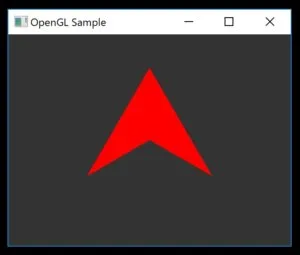
This time we sent only the vertices to GLSL as an attribute variable, but you can send normals, colors, UVs, and other data the same way.
With what we’ve covered so far, you should be able to write fairly efficient programs.
About VAOs
By the way, there’s also the term VAO (Vertex Array Object), which is very confusing. A VAO isn’t another kind of VBO or an alternative to VBOs: it’s a way to encapsulate VBOs. (If I remember correctly, VAOs have been a standard feature since OpenGL 3.x.)
Once you’ve used VBOs, you’ll have noticed that they take a lot of related code. That makes the code harder to read, and it doesn’t look nice either.
VAOs are a mechanism for using VBOs concisely. I use them in GLSL Shader Programming with VAOs in Python!