Hi, I’m yosi. I was saying, “If even writing a website is this hard, people who write books must be amazing,” and a senior student in my lab told me, “That’s an elementary-schooler-level observation.”
Lately, I’ve completely converted to the Church of Python, and I’m so hooked that I barely touch anything else.
My seminar research puts pressure on me to use C# (Unity), and my TA job (teaching assistant: a sort of part-time job supporting a professor) puts pressure on me to use C, but I won’t give in. (If I’m so unhappy, I could just not do them.)
You can use modern OpenGL in Python.
I picked up my pen to share how moving that is.
In this series, I’ll explain modern OpenGL features such as VAOs using Python, with code, as clearly as I can.
Since this is part 1, it mainly covers an introduction and setting up the environment, and at the end we’ll write a program that displays the OpenGL version you can use on your PC.
If you’re thinking, “Never mind all that, just let me read the explanations,” skip ahead to the next article in the series.
What is Python?
Python is a programming language with very simple syntax, designed with ease of writing and reading code in mind, and it has a large share especially outside Japan.
It used to be used mainly for the web, but in recent years it’s often used in the third AI boom (deep learning), and it has become mainstream in Japan too.
By the way, Python has a surprisingly long history: Java was born in 1996, while Python was born in 1994.
Python has two major versions, 2.x and 3.x, and they aren’t compatible (though they’re very close).
Unless you have a special reason, use Python 3.
Advantages of Python
Designed to be overwhelmingly easy to read and write
C and C++ are both wonderful languages.
But they demand a high level of skill from programmers.
Technology keeps evolving, but human resources are finite.
A difficult language keeps eating up part of those resources just by being difficult.
With Python, you can write things the way you want to, and they run the way you want them to (exaggerated advertising).
A rich set of standard features
Along with R, Python is used in research such as statistical processing, and it has a full range of libraries for math and data analysis.
For example, as I’ll show later in this series (part 3), reading and writing files is overwhelmingly simpler than in C.
It can run code interactively
Python runs code as soon as you type a single line into the console.
This is handy when you want to check something quickly or trace how something behaves.
I’d love to tell you more about how convenient this is, but with things like this, trying it yourself beats hearing about it, so I’ll stop here.
Why do OpenGL in Python?
Even to be generous, Python isn’t one of the fast languages.
OpenGL achieves its speed by sending data and commands to the GPU.
So, in many cases, I don’t think the time Python takes to run on the CPU will be a problem.
There will be situations where you have to squeeze out every bit of speed, but I think there are also many cases where you’d rather prioritize programmer productivity.
And Python does have features for speeding up processing, for what it’s worth.
Preparation
Install PyCharm
PyCharm is an integrated development environment from JetBrains, and it’s very well regarded.
There’s a free Community edition, so install that.
Of course, if there’s something else you’d rather use, it doesn’t have to be PyCharm.
https://www.jetbrains.com/pycharm/

I won’t cover how to install it.
If you get stuck, there are plenty of sites that explain it, so refer to them.
Once it’s installed, create a new project.
I named my project OpenglSample.
If Project Interpreter under File → Settings → Project: OpenglSample → Project Interpreter is set to Python 2.x, change it to Python 3.x.
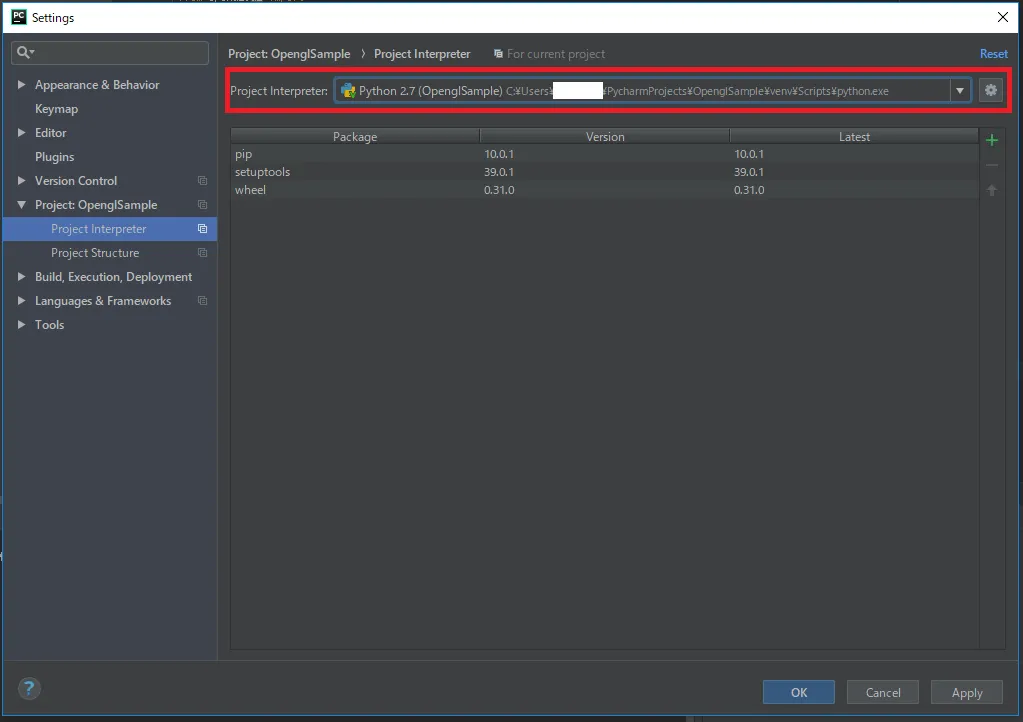
If you don’t have Python 3 yet, you can download it from the official Python website. (I think downloading Anaconda is easier.)
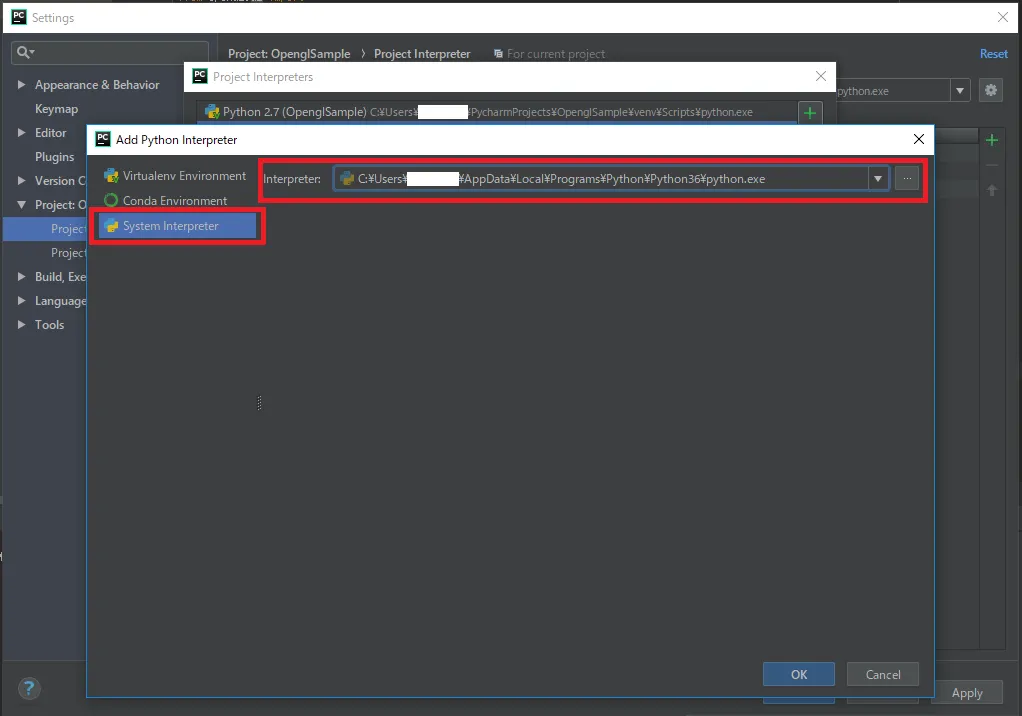
Click the gear icon → Show All, click the + button, and under System Interpreter → Interpreter, enter the path to the Python 3.x executable.
If it has changed as shown below, you’re all set.
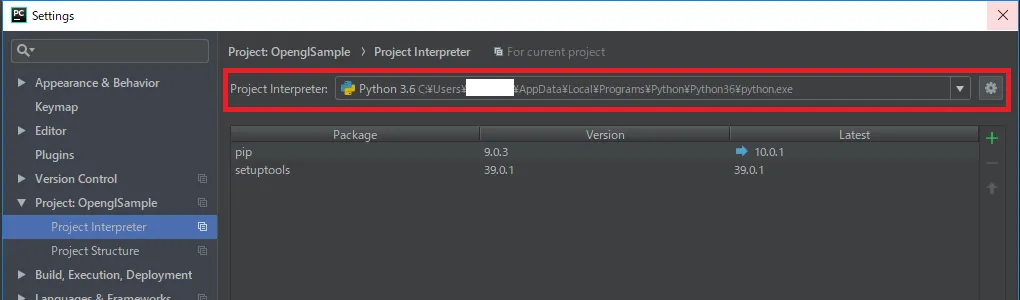
Close the settings once, then click Tools → Python Console, and a console appears at the bottom.
There, type
print('Hello World!')
and press Enter. If it runs without problems, Python 3 should be set up correctly.
Adding the libraries
In File → Settings → Project: OpenglSample → Project Interpreter, click the + button to install the library packages.
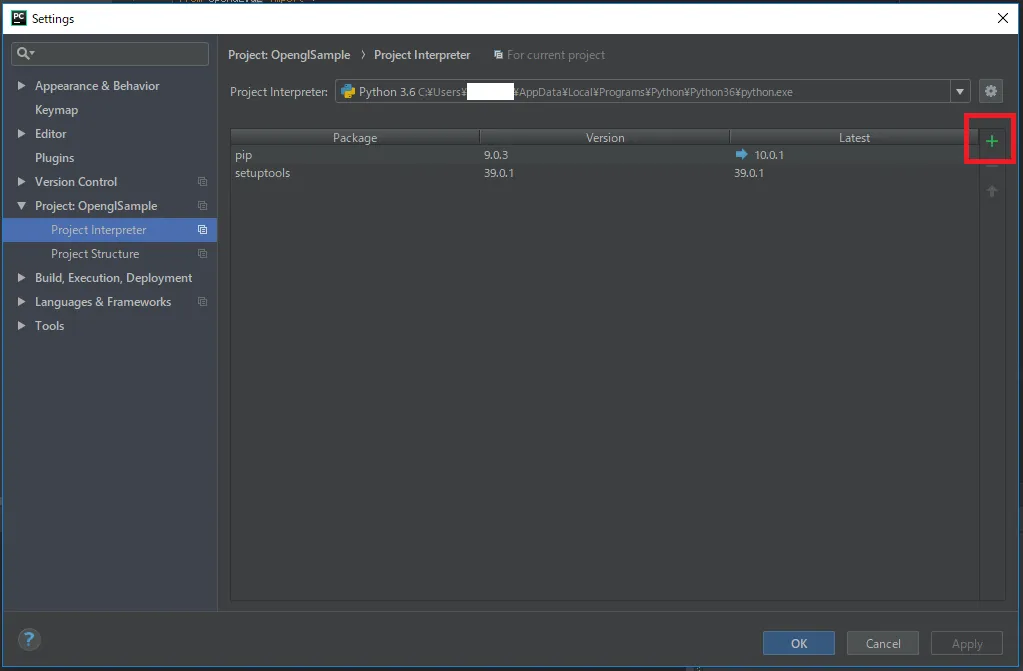
The libraries you need are probably these:
- PyOpenGL
- glfw (there’s also cyglfw3, but it seems to have stopped being updated, so I used this one)
- PyGLM (a math library for OpenGL)
- Pillow (used for loading images)
- numpy (not OpenGL-related, but essential)
Search for each one as shown below and install it.
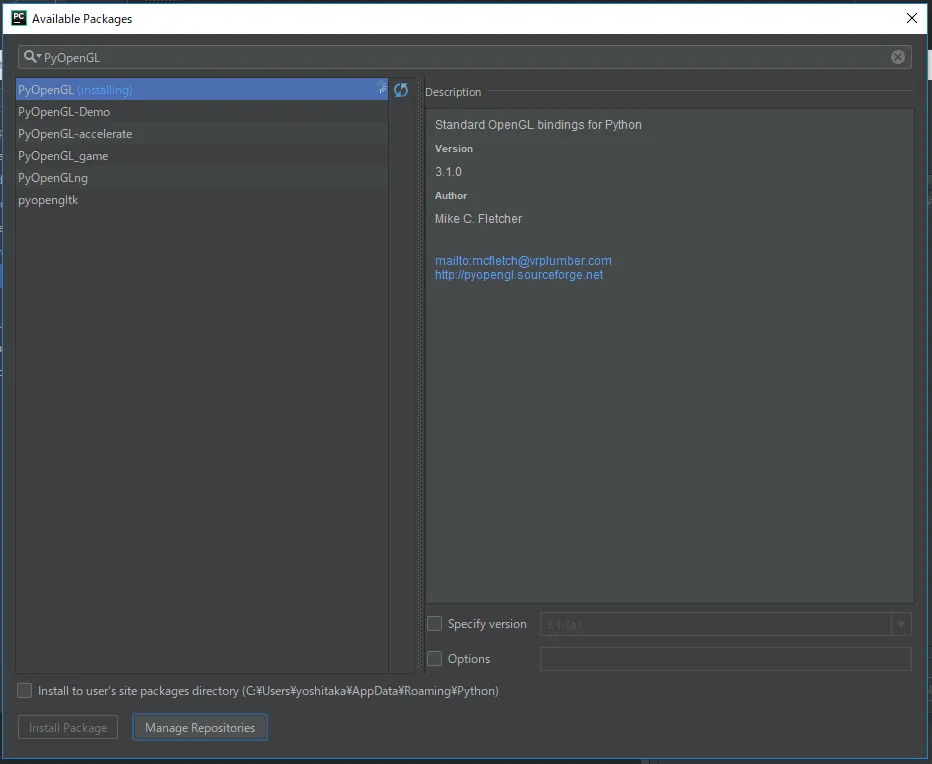
That should complete the setup.
GLFW
By the way, I’ll use GLFW, not GLUT.
GLUT stopped being updated in the ’90s and doesn’t support some newer features, which I personally think is the root of a lot of confusion (around contexts, for example).
GLFW, on the other hand, is a very popular library with a proven track record, so you can write things clearly, and it’s reassuring.
Checking the OpenGL version your PC supports, with sample code
About OpenGL versions
As of 2018, OpenGL has been released up to version 4.6.
| Year | Version |
|---|---|
| 1992 | OpenGL 1.0 |
| 1997 | OpenGL 1.1 |
| 2006 | OpenGL 2.1 |
| 2008 | OpenGL 3.0 |
| 2010 | OpenGL 3.3 |
| 2010 | OpenGL 4.0 |
| 2010 | OpenGL 4.1 |
| 2011 | OpenGL 4.2 |
| 2012 | OpenGL 4.3 |
| 2013 | OpenGL 4.4 |
| 2014 | OpenGL 4.5 |
| 2017 | OpenGL 4.6 |
Going into detail would only make things confusing, so I’ll explain it roughly.
OpenGL has added and removed features with each version. Version 1.x was the era when ancient features such as glPushMatrix existed.
They’re easy to write, but because data is passed from the CPU to the GPU one piece at a time, they’re slow and hard to build on. Even so, for some reason, some universities still teach them. (Maybe that’s not so bad as a way to touch on the history and how things work.)
Version 2.x added GLSL, a shader feature, and VBOs, which let you pass data to the GPU in bulk ahead of time, and officially removed the ancient functions that had multiplied out of control.
Version 3.x introduced VAOs, which let you write the long-winded VBO code concisely.
Since 4.x, OpenGL’s evolution has accelerated, adding the latest features one after another.
OpenGL more or less maintains compatibility between versions, so you can run code written for older versions.
Also, the supported OpenGL version differs from PC to PC.
If your PC’s graphics driver only supports up to 3.3, you can’t use 4.0 or later.
You can get the version with glGetString(GL_VERSION).
Getting the supported OpenGL version
Create a new Python file with File → New → Python File.
You can also open the console with Tools → Python Console and type the Python code there directly.
Source code
# Import OpenGL and GLFW
from OpenGL.GL import *
import glfw


def main():
    # Initialize GLFW
    if not glfw.init():
        return

    # Create a window
    window = glfw.create_window(640, 480, 'Hello World', None, None)
    if not window:
        glfw.terminate()
        print('Failed to create window')
        return

    # Create the context
    glfw.make_context_current(window)

    # Print the OpenGL version and other information
    print('Vendor :', glGetString(GL_VENDOR))
    print('GPU :', glGetString(GL_RENDERER))
    print('OpenGL version :', glGetString(GL_VERSION))

    # Destroy the window and terminate GLFW
    glfw.destroy_window(window)
    glfw.terminate()


# This is how you write a main function in Python
if __name__ == "__main__":
    main()
Result
Vendor : b'Intel'
GPU : b'Intel(R) HD Graphics 520'
OpenGL version b'4.4.0 - Build 21.20.16.4627'
In my environment, it looks like I can use up to version 4.4.
From here on, I expect to focus on version 4.0, but I think much of the content will be useful even if your PC only supports up to 3.x.
Starting next time, I’ll get into explaining OpenGL and writing programs in earnest.
That’s all for this time.