
In these lessons, I’ll explain OpenGL so that even people touching it for the first time can follow along. The target level is someone who has written a little C.
The series is about OpenGL 2.1, but I’ll avoid the old features as much as possible so that what you learn is easy to apply to newer versions such as OpenGL 3.x and 4.x.
Why go out of my way to use OpenGL 2.1? Because many PCs don’t support the newer versions of OpenGL. If you release software you’ve made, you want as many people as possible to use it. In those cases, you often have no choice but to use an older OpenGL.
For example, Clip Studio Paint, the most famous illustration software, appears to use OpenGL 2.1, and Live2D appears to use OpenGL 3.3. As you can see, even commercial software deliberately uses OpenGL versions that aren’t the latest.
The language is C++, but don’t worry: I’ll avoid C++-specific features as much as possible, and when I do use one, I’ll explain it as it comes up. C++ has plenty of difficult parts, but it adds very handy features such as dynamic arrays.
OpenGL keeps compatibility across versions, which makes parts of it very convoluted, and that often makes it hard to learn.
I hope to clear up those parts. I still have a lot to learn myself, but I’m writing this in the belief that it will help someone, so I hope you’ll stick with me.
Installing Visual Studio
Any of Visual Studio 2013, 2015, or 2017 will do. If you already have one of them installed, skip to the next section.
If Visual Studio isn’t installed on your PC, install it by following this article:
Installing Visual Studio Community 2017
Initial setup for OpenGL
Note
The screenshots in this article are from the Japanese version of Visual Studio 2017. The menu names in the text are the ones used in the English version.
Start Visual Studio, go to File → New → Project, and select the console application under Visual C++ (Win32 Console Application in the screenshot).
Give the project any name you like.
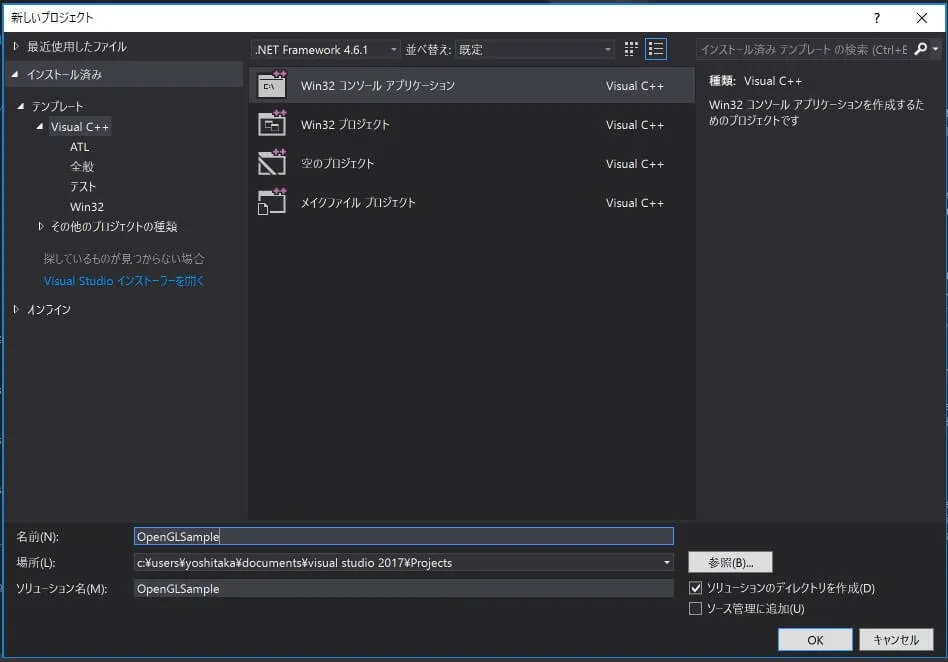
Click Finish.
Before installing the libraries, let me explain briefly: OpenGL contains only the core features for rendering graphics. So if you use OpenGL to make a game, for example, you need other libraries to play music or to create a window to draw in on an operating system such as Windows or macOS.
GLUT, FreeGLUT, and GLFW are libraries that create windows for you. You use one of them (this series uses GLFW). GLUT was made by the people behind OpenGL, but it is no longer maintained. FreeGLUT is GLUT’s successor. There are others, such as wxWidgets and Qt, but they’re far too big to use just for learning OpenGL.
GLEW is for extending OpenGL’s features, and there are similar libraries such as GLee. As far as I understand, it provides features that some OpenGL versions don’t support.
We’ll install these libraries with NuGet. Go to Project → Manage NuGet Packages, click Browse, and search for “nupengl”.
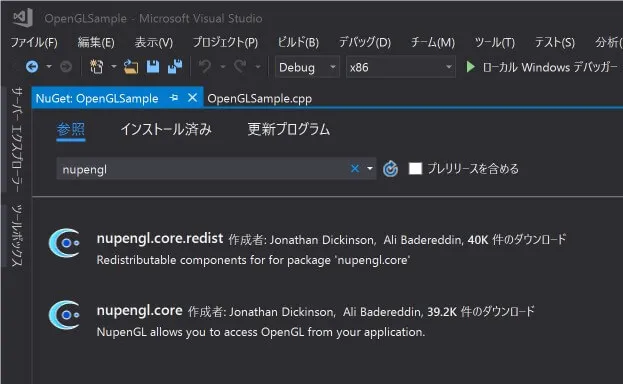
Select nupengl.core, and an Install button appears. Click it to install the package. This package makes libraries such as GLFW, GLEW, and FreeGLUT available.
With NuGet, chores like “download the files from the website, install them, add them to the path…” are all done for you. It’s so convenient I’m afraid it’ll make me dumb…
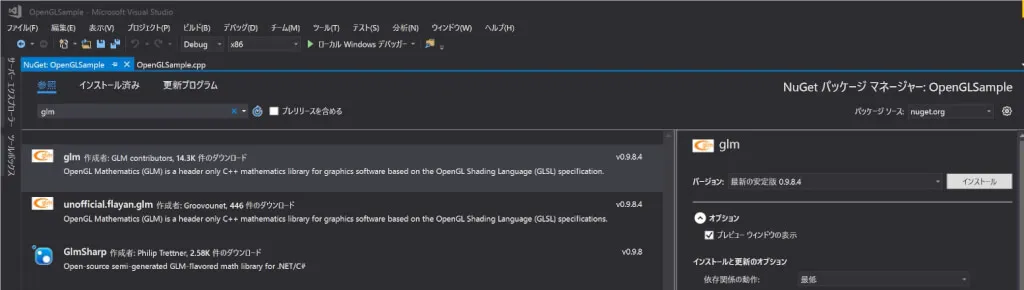
Next, install the GLM library. GLM is a matrix library for OpenGL. It’s extremely convenient, and there’s no reason not to use it. Search for “glm” and install it the same way.
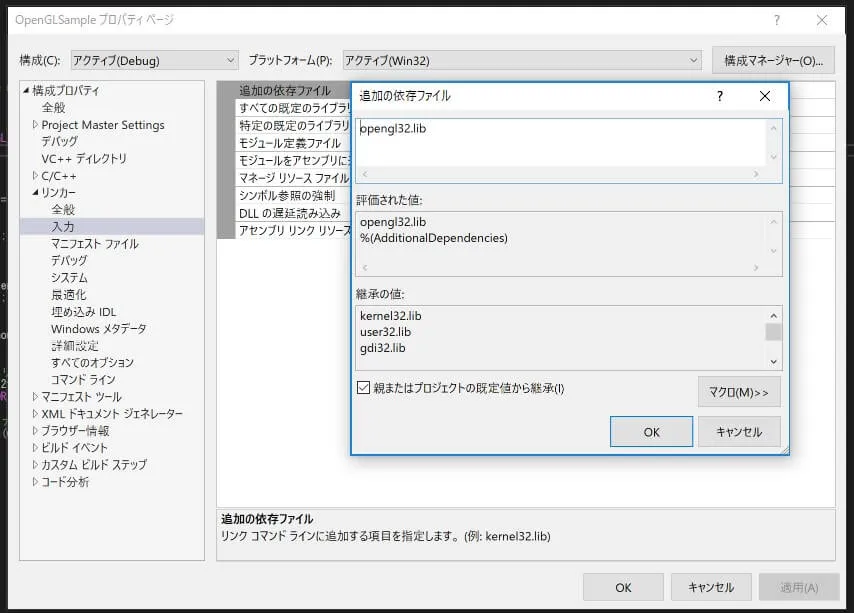
Important: If you skip the following setting, none of the OpenGL functions will work.
Go to Project → (project name) Properties → Configuration Properties → Linker → Input → Additional Dependencies, choose Edit, enter “opengl32.lib”, and click OK.
OpenGL itself ships with Windows, so that’s all you need. There’s nothing new to download.
That completes the basic setup.
Without NuGet, this explanation would have been far longer. NuGet is just too good.