Since I’m about to write a series of tutorial articles, I figured I’d take the opportunity to install the newly released Visual Studio Community 2017.
It isn’t difficult, but it might come in handy, so I’ll walk through it as carefully as I can while keeping it brief. (In other words, a perfectly ordinary walkthrough.)
Steps
Note
The screenshots in this article are from Microsoft’s Japanese website and the Japanese version of Visual Studio. The button names in the text are the ones used in the English version.
First, download the installer from Microsoft’s official site below. https://www.microsoft.com/ja-jp/dev/products/community.aspx (a Japanese page) You can download it from the link above, but for security reasons, I think it’s better to search for the official site yourself on Google or another search engine.
The Community edition’s license is perfectly fine for personal use. We live in good times.
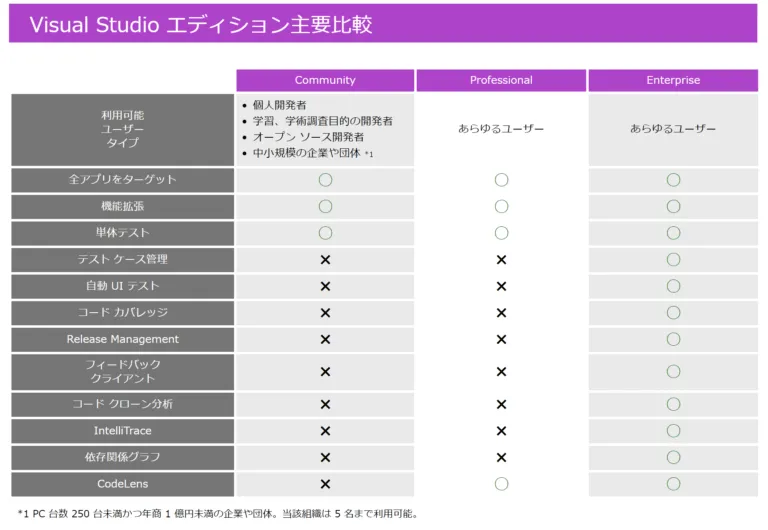
Source: https://www.microsoft.com/ja-jp/dev/products/community.aspx
Scroll down and you’ll find a link to the download page. Click it.

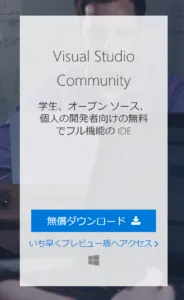
On the download page, download the Community edition on the far left.
Run the downloaded file.
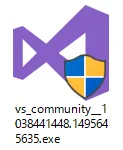
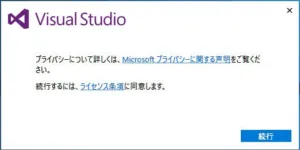
Click Continue.
I only use C++, so I checked only Desktop development with C++, but choose whatever fits your own needs.
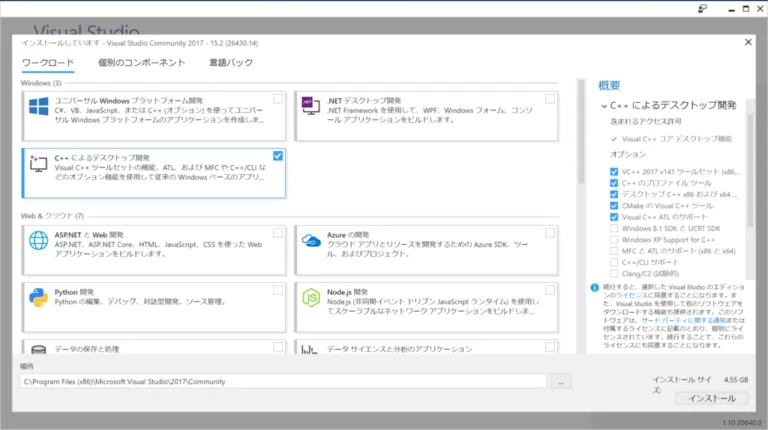
Once you’ve made your choice, click Install.
Then wait.
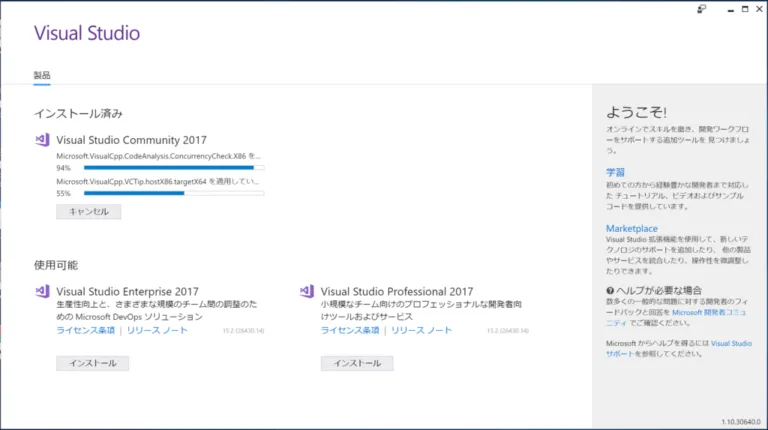
And wait…
…
Sooo looong!!!
Well, it’s still much easier than waiting in line at Disneyland. (Not that I’ve ever been anywhere but Universal Studios Japan.)
When I thought it was taking way too long, it turned out my Wi-Fi had disconnected…
But as you’d expect from Microsoft, once I got the Wi-Fi back and kept waiting, the installation finished without a hitch.
When it’s done, click Launch.
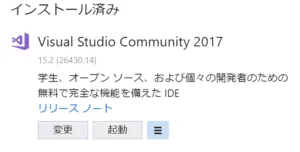
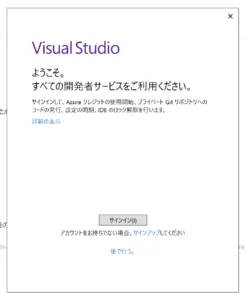
Sign in.
If you don’t have an account, sign up. (I think it’s fine to do this later, too. In that case, click Not now, maybe later.)
And that’s it.
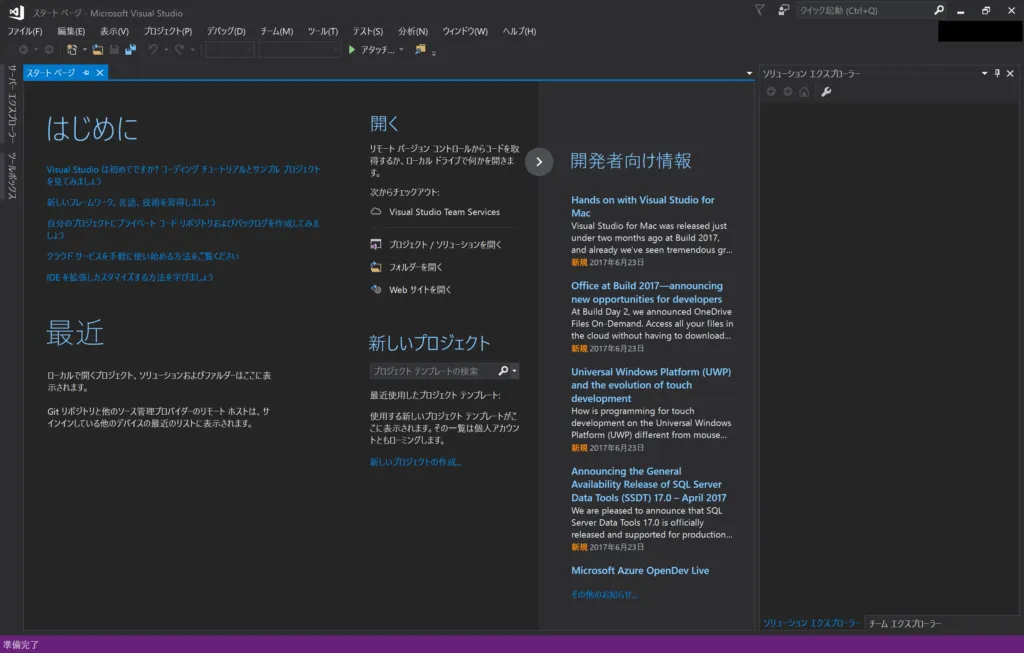
It looks almost the same as Visual Studio 2015.