
3D data files can get very large.
Basically, the more polygons (vertices) there are, the larger they get.
But especially when they’re used on the web, large files take a long time to download, which isn’t practical.
So this time, we’ll reduce the file size with Draco, a 3D data compression program developed by Google.
Draco can make files very small.
We’ll actually compress an OBJ file with Draco.
Note: I found out later that the method in this article (draco_encoder) apparently can’t compress glTF files.
I’ll write another article about how to compress glTF files.
Update:
I wrote it.
Compressing glTF / GLB Files with Draco for the Web
Downloading Draco
https://github.com/google/draco
Download the ZIP file from Code ↓ → Download ZIP and extract it.
Or clone it with Git.
git clone git@github.com:google/draco.git
Installing CMake
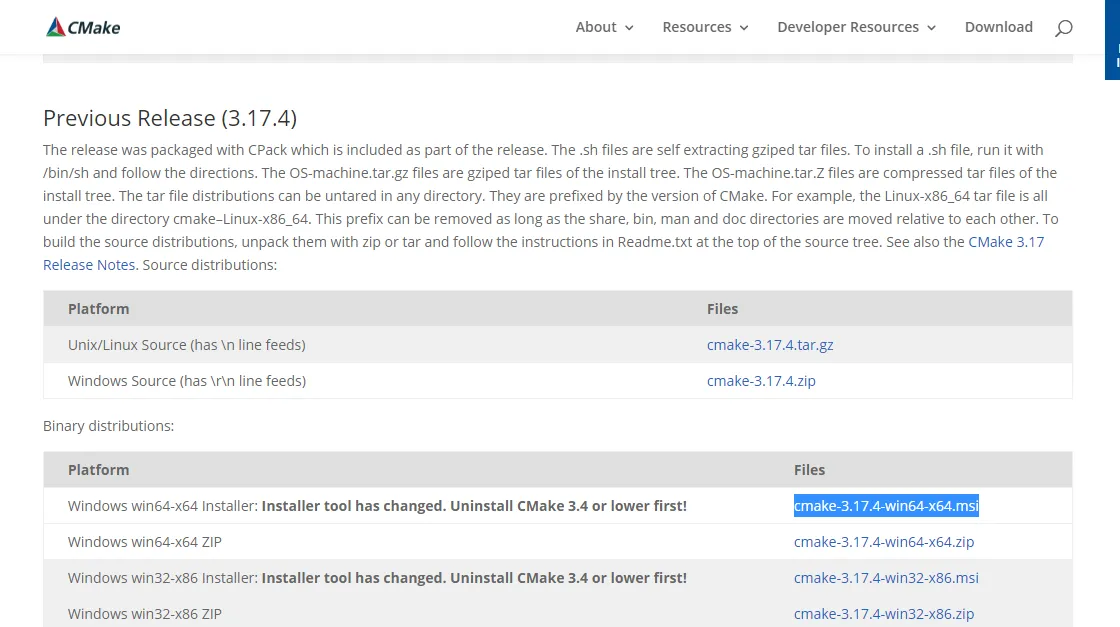
Download the installer for Windows (highlighted in blue in the image; the version may have changed, so adjust accordingly).
Double-click the downloaded installer to run it.
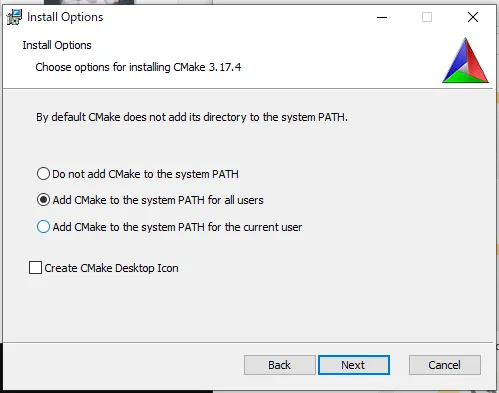
Basically, you should only need to keep clicking Next, but when it asks whether to set up the PATH, choose to add CMake to the PATH as shown in the image.
After that, just keep clicking Next until it finishes.
Installing Visual Studio
If you haven’t installed it yet, follow this article:
Installing Visual Studio Community 2017
Building the Draco source code
Note
The screenshots in this section are from the Japanese versions of Windows and Visual Studio. The names in the text are the ones used in the English versions.
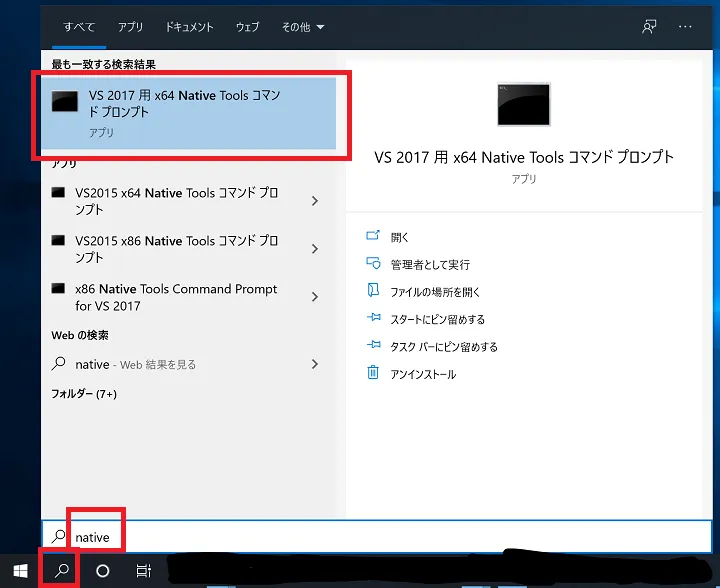
Click the magnifying-glass search button at the bottom of the Windows screen and type “native”.
“x64 Native Tools Command Prompt for VS 2017” appears, so launch it. Any Visual Studio version is fine, such as 2015.
Run the commands below.
Use the cd command to move to the folder where you downloaded Draco.
Create a build folder and move into it.
Running the cmake command generates draco.sln (a Visual Studio solution file).
cd ../../../../../../../
cd draco-master

draco-master>mkdir build
cd build

cmake -G "Visual Studio 2017 Win64" -DCMAKE_C_COMPILER="C:/Program Files (x86)/Microsoft Visual Studio 14.0/VC/bin/cl.exe" -DCMAKE_CXX_COMPILER="C:/Program Files (x86)/Microsoft Visual Studio 14.0/VC/bin/cl.exe" ..
Files are generated like this.
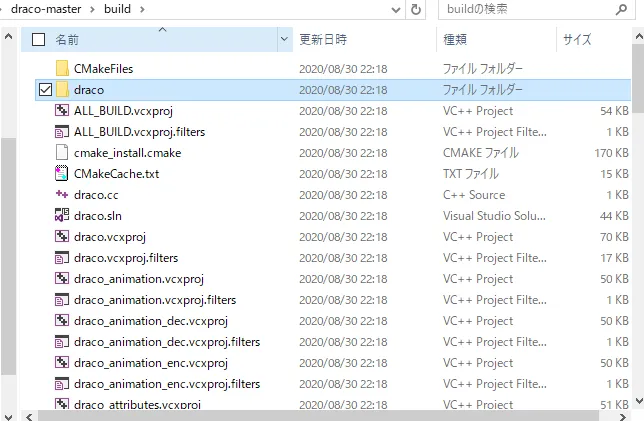
Find draco.sln among them and double-click it to open it in Visual Studio.
You can leave the solution configuration as Debug or change it to Release.
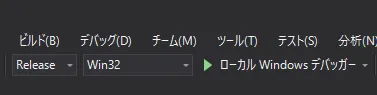
I changed it to Release.
The build takes longer, but with Release, Draco compression runs faster.
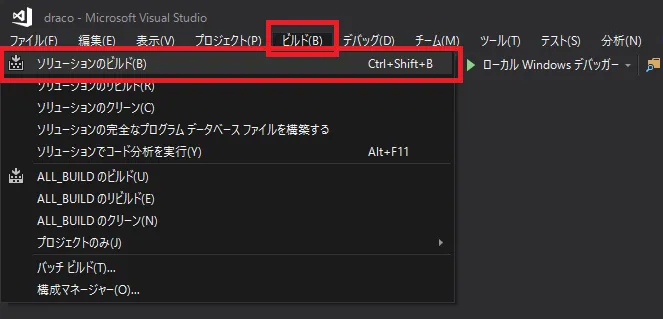
Build it with Build → Build Solution.
A Release folder is created inside the build folder, and the draco_encoder.exe executable is created inside it. (If you left the solution configuration as Debug, it’s a Debug folder instead of a Release folder.)
You run draco_encoder.exe from the command prompt to do the Draco compression.
Trying out Draco compression
In the command prompt (which is still in the build folder), move into the Release folder and run the executable.
cd Release

draco_encoder -i input_file_path -o output_file_path
This time, let’s compress a sample that comes with the Draco source code.
It’s the bunny that everyone in the CG field has seen.
draco_encoder -i ../../testdata/bunny_norm.obj -o bunny.drcYou’ll get output like this, and the compressed file is created.
Encoder options:
  Compression level = 7
  Positions: Quantization = 11 bits
  Normals: Quantization = 7 bits

Encoded mesh saved to bunny.drc (155 ms to encode).

Encoded size = 65566 bytes

For better compression, increase the compression level up to '-cl 10' .
The original bunny_norm.obj is 4.7 MB and the compressed file is 64 KB, so it’s become much smaller.
You can change the compression level with the -cl option.
When I tried the maximum value of 10, it came down to 60 KB.
draco_encoder -i ../../testdata/bunny_norm.obj -o bunny.drc -cl 10Raising the compression level too much may make decoding take longer, so it might be better not to set it too high.
You may also get an error like this.
Failed loading the input mesh: Error decoding input..This error seems to occur when Draco doesn’t support the input data.
If the problem is that the data contains quadrilateral polygons, converting them to triangles in MeshLab solves it.
In my case, though, that wasn’t it.
I was trying to compress a glTF (GLB) file, but apparently glTF files can’t be used as input.
A painful mistake, late on a Sunday night…
So, to be continued in the article on Draco-compressing glTF files.